
There are many reasons why your computer is running so slow. Some possible poor PC performance causes are as follows:

1. Lack of computer maintenance
Regular computer maintenance ensures your PC runs optimally and avoids frustrating crashes and slowdowns. Otherwise, your computer’s performance, security, and longevity may suffer.
To ensure your computer is functioning properly, you should perform the following tasks regularly:
- Run regular antivirus scans.
- Remove unnecessary files to clean up disk space.
- Optimize your drives (HDD and SSD).
- Check for storage and memory issues.
When you fail to follow a regular maintenance schedule, your computer will experience issues like junk file accumulation, overheating, system crashes, data loss, and failing hardware in addition to poor performance.

2. Driver problems
If your driver software is out of date, corrupted, or not functioning properly, your operating system may not be able to communicate properly with your hardware, which can result in slow performance.
Driver issues can also cause conflicts between your system’s software components, which can lead to performance issues like freezes, crashes, and instability.
📌 Related: How to Update Drivers on Windows 10/11 PC?

3. Software issues
Software culprits leading to poor PC performance include outdated or incompatible software, unnecessary startup apps, and resource-hungry programs.
Running too many programs at once is also a practice that often makes the PC intolerably slow. To increase PC performance, consider closing some programs or restarting.
Similarly, outdated operating systems and programs can slow down your PC. To fix that, update Windows and your apps frequently to ensure they work perfectly.

4. Registry issues
The Windows registry is a crucial yet sensitive database that stores configuration settings, options, and preferences for your computer’s programs and hardware.
Over time, registry errors and corruption develop, causing many system problems, including slow PC performance.

5. Hardware issues
When it comes to hardware problems leading to poor performance, insufficient amounts of memory, storage space, or processing power are often to blame.
For instance, if your computer does not have enough RAM, it may fail to run several apps at once. A hard drive running out of space may struggle to swap data in and out of memory.
To fix all these hardware problems and improve PC performance, consider upgrading some parts, but before that you can apply fixes we will speak about below.
📌 Also read: Factors That May Cause Hard Drive Failure
How to Improve PC Performance on Windows 10/11
PRO TIP
Malware can significantly slow down your Windows device by consuming huge amounts of system resources, launching unwanted and dangerous processes, and modifying critical system settings. Your OS may even become totally unresponsive or get damaged beyond repair.
Usually, the first step to fix a performance problem on Windows 10/11 is to scan for malware issues.
You can scan with Windows Security by opening it from the Start menu (Settings > Privacy & security > Windows Security), selecting Virus & threat protection, and clicking Quick scan or Full scan to check for and remove any threats.
While Windows Security offers essential protection, it doesn’t catch every potential threat. That’s where Auslogics Anti-Malware comes in. It’s designed to work alongside your main antivirus and neutralize hidden threats, suspicious activities, and vulnerabilities that may evade standard protection.
Fix 1: Use reliable third-party tools
The fastest and most effective way to boost PC performance is to use trustworthy third-party tools, like CCleaner, Advanced SystemCare, and Auslogics BoostSpeed. These programs are designed to:
- Address performance bottlenecks.
- Clean unnecessary clutter.
- Optimize your PC settings without needing technical expertise.
The main advantage of using third-party tools instead of built-in methods is their versatility. These tools are specifically designed to perform all optimization tasks with just one click. We strongly recommend using a PC optimizer regularly to ensure your PC is well-maintained and to minimize the causes of slow performance.
Auslogics BoostSpeed is quite unique because it offers comprehensive features that can supercharge your computer’s performance. It has over 30 features, from removing temporary files and defragging your system to cleaning your registry.
Here’s how it works:
- Download the software from Auslogics official website and install it.
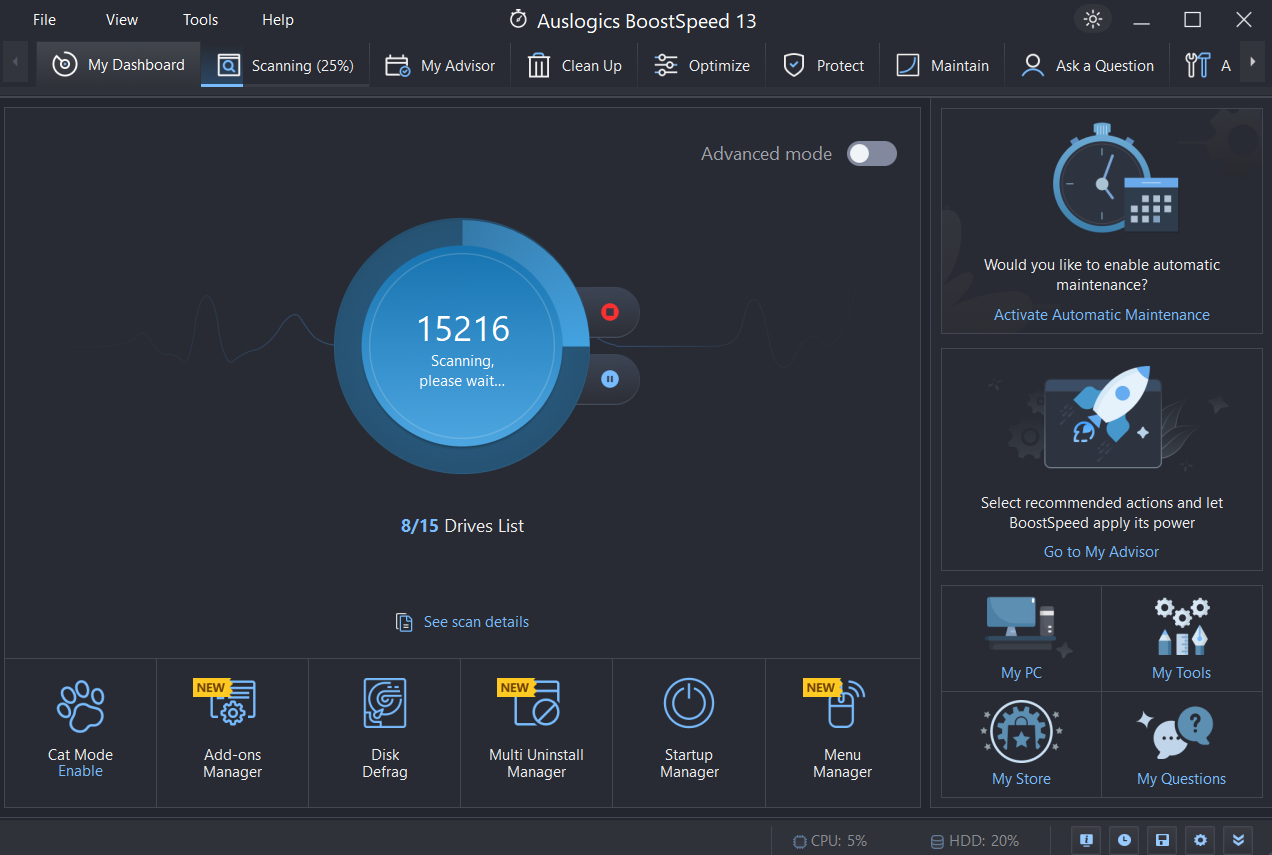
- After the installation, launch the program. You will see a big Scan button. Click on it to start the process.
This is a multi-purpose full system scan that checks your disk space, pinpoints stability and performance glitches, looks for privacy vulnerabilities, and more. If you don’t know what’s causing your PC to slow down, use this option.
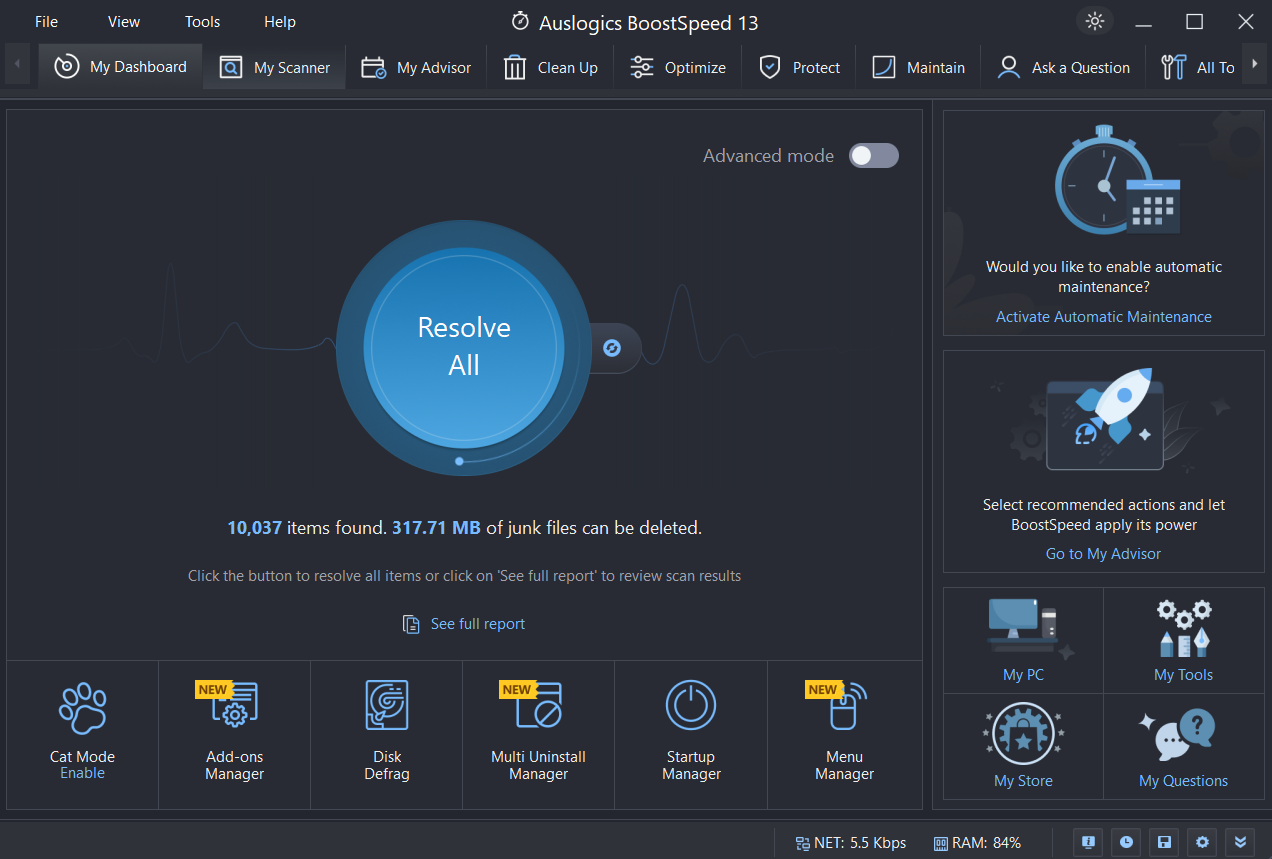
- After the scan, click on Resolve All to optimize your system.
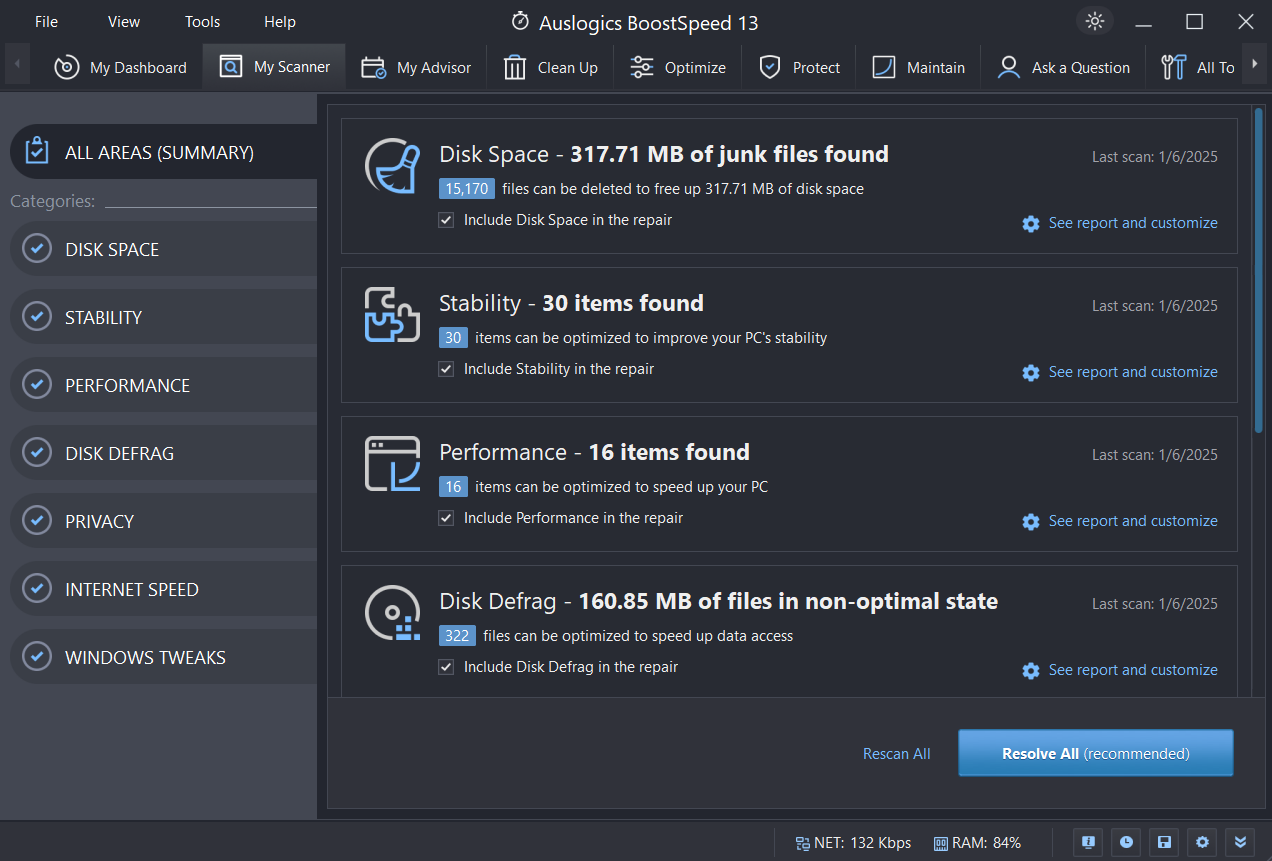
- You can also click on See scan details to find out what BoostSpeed uncovered and suggest to do. Here, you can deselect areas you don’t want to optimize and make adjustments that suit you.
That said, if you are not sure which third-party tool to use, here is a quick summary of some of the best on the Internet today. We have put together a comparison of their main features to help you make an informed decision.
FeatureAuslogics BoostSpeedCCleanerAdvanced SystemCareJunk file cleanup✔ Comprehensive and thorough✔ Moderate coverage✔ Extensive cleanupDisk defragmentation✔ Advanced optimization✘ Not available✔ Basic functionalityStartup optimization✔ Detailed with safety ratings✔ Basic functionality✔ Basic functionalityReal-time monitoring✔ Monitors system performance, like CPU, RAM, etc.✘ Not available✔ Monitors system performance, like CPU, RAM, etc.Ease of use✔ User-friendly interface✔ Simple✔ Moderate learning curveFree version availability✔ Free with limited features✔ Free with limited features✔ Free with limited featuresPremium pricingPro version: $34.44 for 3 PCs/yearHoliday prices: $29.28 for 3 PCs/year
Pro starts from $59.95 for 3 devices/year to $159.95 for 5 devices/2 yearsHoliday prices: From $59.95 for 3 devices/year to $109.95 for 5 devices/2 years
Pro version starts from $29.99/year to $179.94/2 yearsHoliday prices: $16.77/year–26.99/2 years
Privacy protection✔ Tracks and removes sensitive data✔ Moderate coverage✔ Includes privacy features
There may be several factors that may be causing your computer to lose its steam. PC optimizers helps to find the areas for improvements and automatically apply necessary adjustments. Regardless, Auslogics BoostSpeed has got the tool to help you fix decrease in PC productivity.Whether it’s Duplicate File Finder, Tweak Manager, or its Startup Manager, this tool can help you get more space and reduce unnecessary apps taking up too much resources, defragment hard drives, and tweak Windows settings for further improvements.
PC optimizers are always the easiest solution for keeping your machine running smoothly. However, if you prefer to navigate independently, let’s explore the built-in Windows methods to enhance your PC’s performance.
Fix 2: Update your drivers
Drivers are software that help your computer communicate with hardware devices like network adapters or graphics cards. When these drivers are not updated, the devices they control run inefficiently. This might be the reason you are experiencing performance issues.
Updating your drivers ensures that your hardware components, such as the graphics card, network adapter, and sound card, are running with the latest software. This helps prevent crashes, compatibility issues, or slow performance.
Below are important drivers to update for optimal performance:
- Graphics card for sharper visuals and better gaming.
- Network adapter for faster internet and stable connection.
- Sound card for enhanced audio quality.
- Chipset drivers for improved system stability.
- Storage drivers for faster data transfer speeds.
Step 1:
To update your drivers, you need to go to Device Manager . Type Device Manager in Windows Search and open the app.
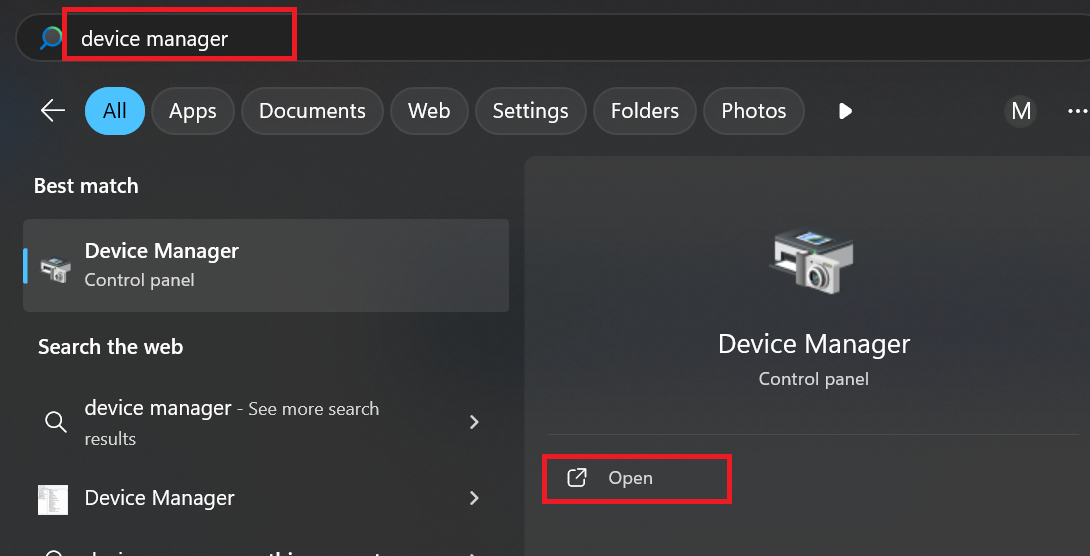
Step 2: Expand the categories to find the device whose driver you want to update (for example, expand Display adapters if you want to update a graphics card driver).
Step 3: Right-click the device and choose Update driver .
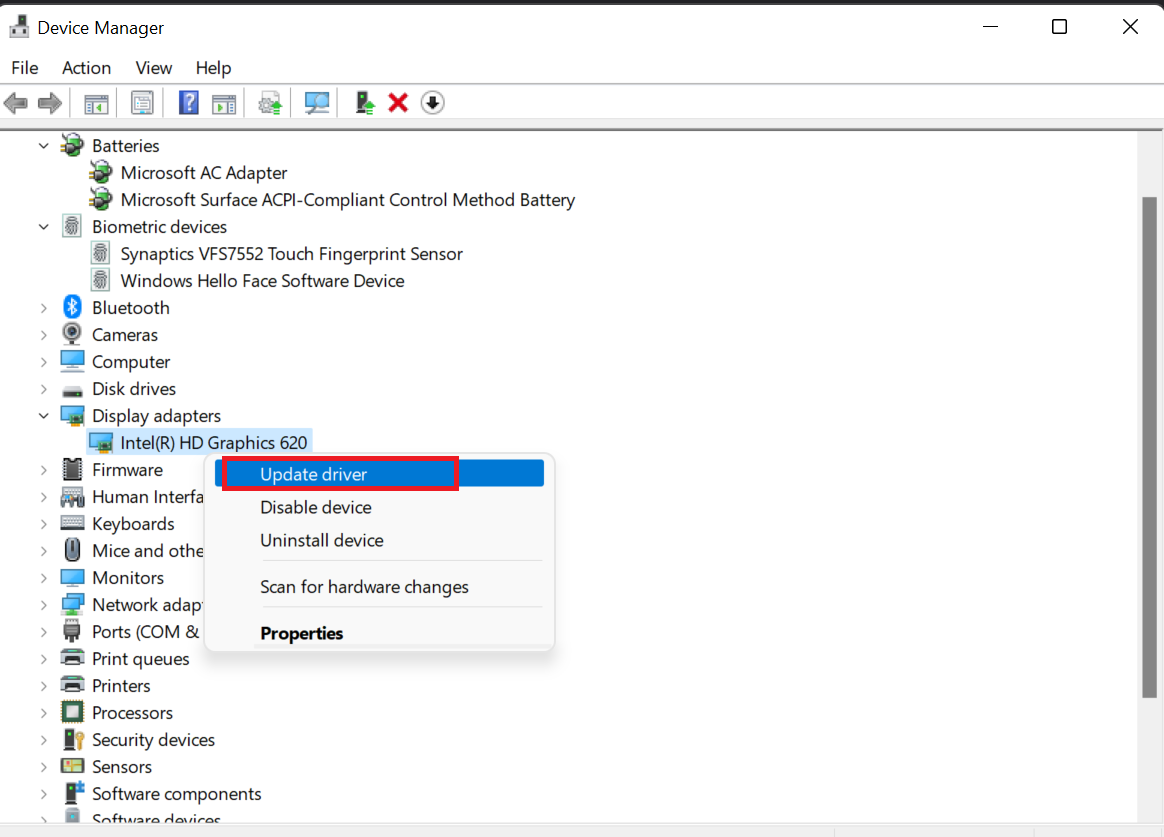
Step 4: On the next screen, select Search automatically for drivers .
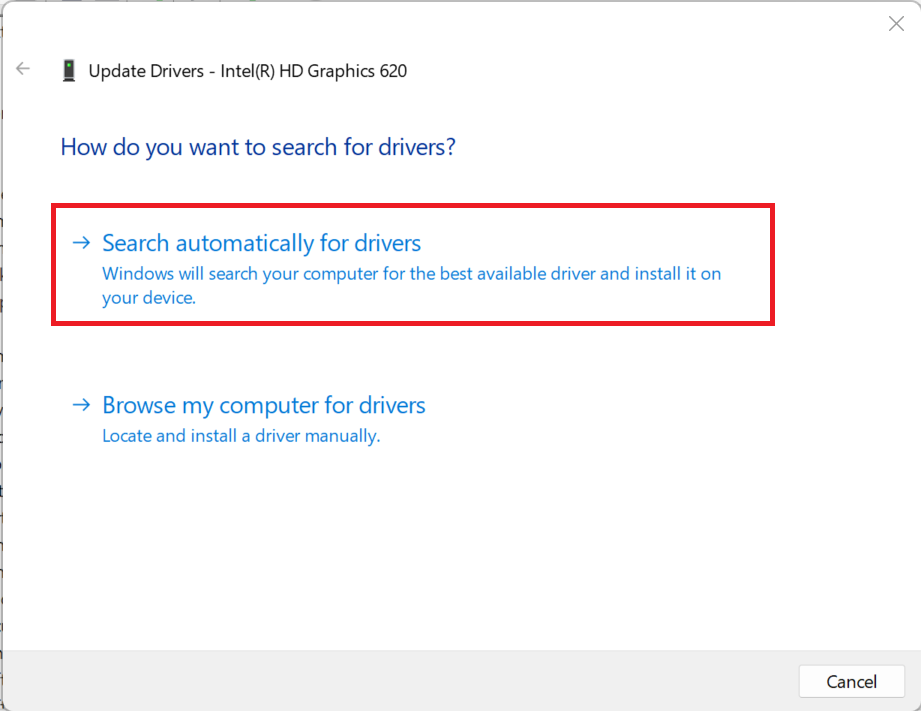
Follow the on-screen instructions to complete the update.
PRO TIP
Manually updating drivers can be time-consuming and tricky, especially if you’re unsure which ones need updates. Auslogics Driver Updater simplifies the process by automatically scanning your system and updating all outdated or missing drivers in one go.
Fix 3: Update your Windows
Your drivers are not the only things to update. If, after completing the step above, performance does not improve significantly, try updating Windows.
Keeping Windows up to date is crucial for maintaining system stability and performance. Updates often include bug fixes and performance enhancements that protect your computer from vulnerabilities and improve its overall functionality.
Step 1: To update Windows, open Settings by pressing Win + I . Click on Windows Update.
Step 2: Click Check for updates.
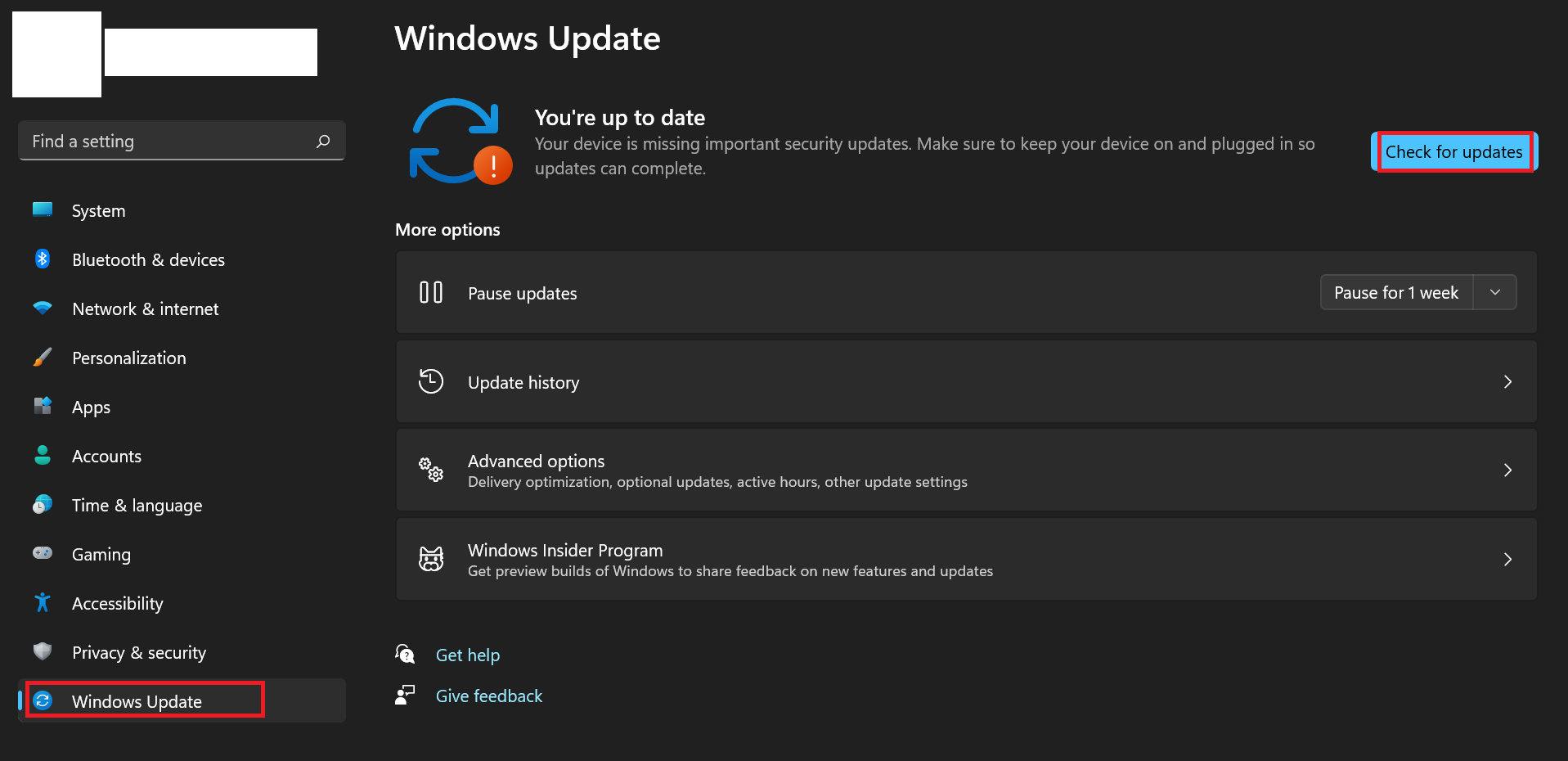
Step 3: If updates are available, click Download and install.
Restart your PC if prompted to complete the update.
Fix 4: Remove unneeded software
Now that your PC is up to date, you should remove unnecessary software.
Unnecessary apps take up valuable disk space on your computer and consume plenty of system resources. All of these can slow down your device, limiting the amount of storage available for important data. So, to improve your machine productivity, remove unnecessary apps .
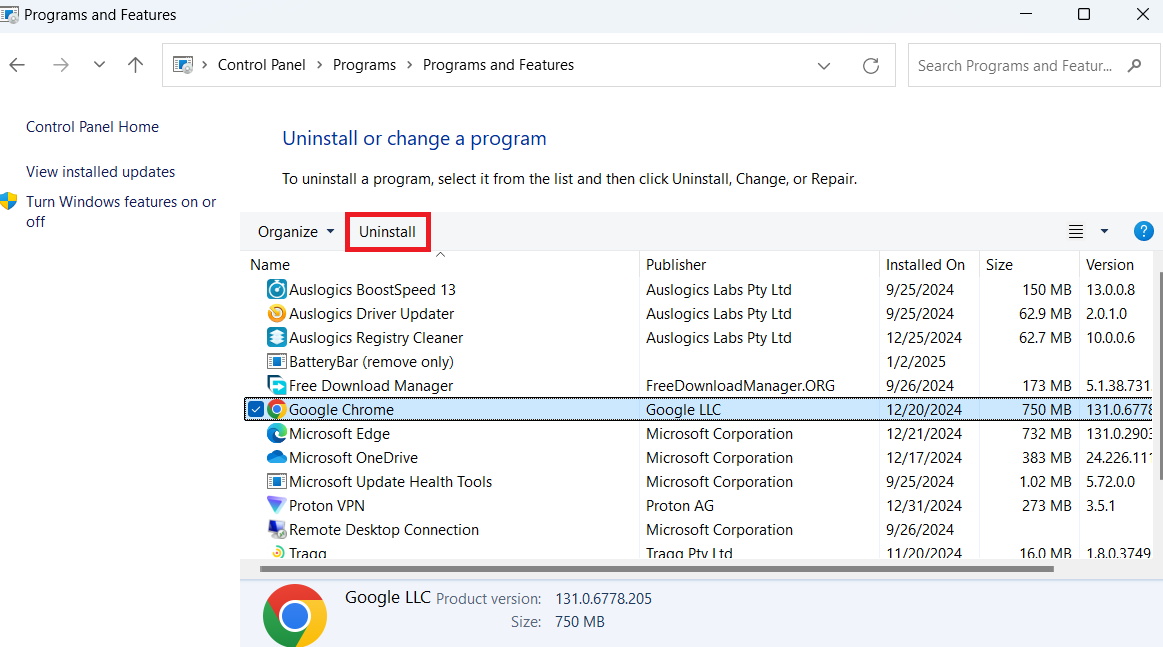
Windows has a built-in Add or Remove Programs feature to uninstall apps:
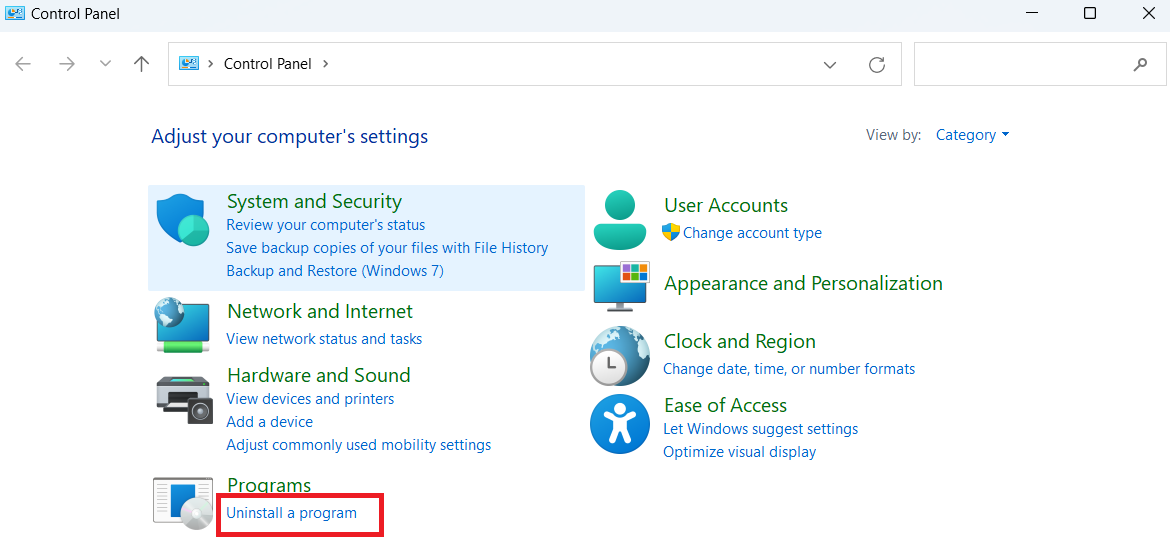
- Open Control Panel from Windows Search.
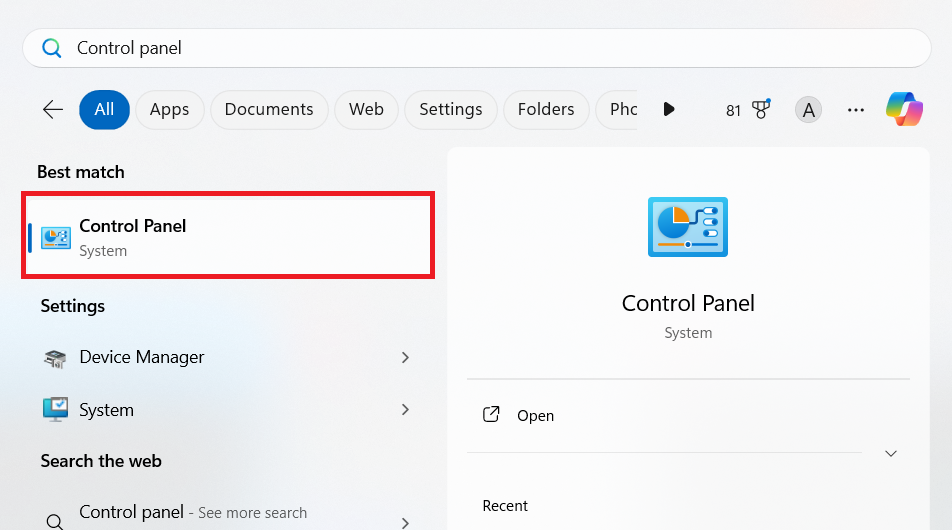
- Select Uninstall a program under Programs.
- Locate the app you would like to uninstall. Select it and click the Uninstall button.
Instead of using the Control Panel, try Auslogics BoostSpeed ’s Uninstall Manager. It’s faster, easier, and much more thorough.In addition to deleting apps, it also removes leftover files and registry entries that apps leave behind after uninstallation — something the Control Panel can’t do. This frees up even more space.
Fix 5: Disable unneeded startup programs
Disabling unnecessary startup programs in Windows can improve PC performance by reducing the number of applications competing for system resources when the system starts. Every time your system boots, startup programs consume system resources like CPU, RAM, and disk space. This can slow down your computer, especially during bootup and even minutes after booting.
By disabling startup programs you don’t need immediately, the system can focus on essential tasks, leading to faster startup times and smoother overall performance. This also frees up resources for other applications and ensures that your PC operates more efficiently throughout its use.
Here’s how to use Task Manager to disable the startup apps:
- Press
Ctrl + Shift + Escto open Task Manager and click the Startup apps tab. - Select any app you want to disable and click Disable.
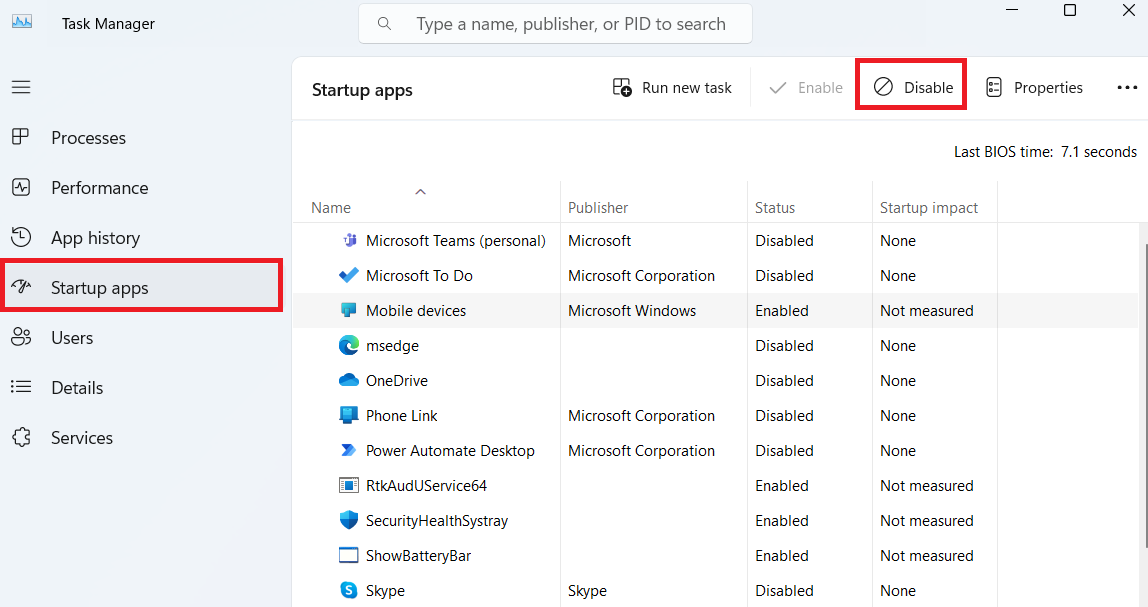
You can check the startup impact of each app in the respective column to help decide which one should go. If an app’s startup impact is rated as High and it is not needed for startup, you should consider disabling it.
PRO TIP
If you want to know more on what’s going on in terms of resource usage, processes, and their impact on your system performance, consider using Auslogics BoostSpeed’s Task Manager.Together with its one-click optimization tools, you can control your system resources and adjust necessary settings to easily speed up PC productivity. Make your PC perform better than it used to.
Fix 6: Clean up your registry
To boost PC performance further and make sure your OS is running smoothly, you need to keep your registry clean . This is important because when the registry gets cluttered with outdated or unnecessary entries (like leftover settings from uninstalled programs), the system may take longer to load necessary system files, which might cause a drop in performance.
The Windows registry is a database where Windows keeps important settings that are crucial for the operating system as well as settings needed for hardware, software, and user preferences.
Please note that you need to back up your Windows registry before making any changes.
Cleaning the registry involves removing these outdated, invalid, or broken registry entries that may be causing performance issues and system instability.
Here’s how to do it:
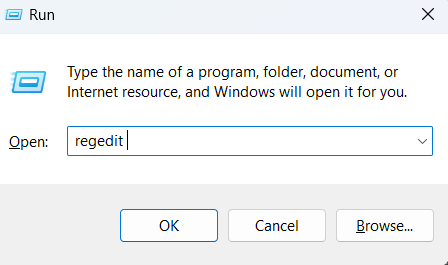
- Open the Registry Editor by pressing the
Windows key + Rto open the Run dialog. In the text box, type regedit and click OK or pressEnter.
- Copy and paste HKEY_LOCAL_MACHINE\Software into the address bar and see if there are entries from programs you’ ve uninstalled or software you no longer use.
Komentar
Belum ada komentar. Jadilah yang pertama!